Software Opstartfout
Probleemoplossing voor Veelvoorkomende Opstartfouten
Stap 1: Controleer Systeemvereisten
- Zorg ervoor dat uw systeem voldoet aan de minimale vereisten:
- Windows 10 of later
- Minimaal 4GB RAM
- Minimaal 1GB vrije schijfruimte
Stap 2: Controleer Microsoft Visual C++ Redistributable
Als u fouten ziet zoals vcruntime140.dll niet gevonden of De toepassing kon niet correct worden gestart (0xc000007b), mist u mogelijk de Microsoft Visual C++ Redistributable.
- Druk op
Windows + R, typcmden druk op Enter. - Voer uit:
dir "C:\Windows\System32\vcruntime*.dll" - Als u uitvoer ziet, is de redistributable geïnstalleerd. De bestandsnaam (bijv. vcruntime140.dll) geeft de versie aan.
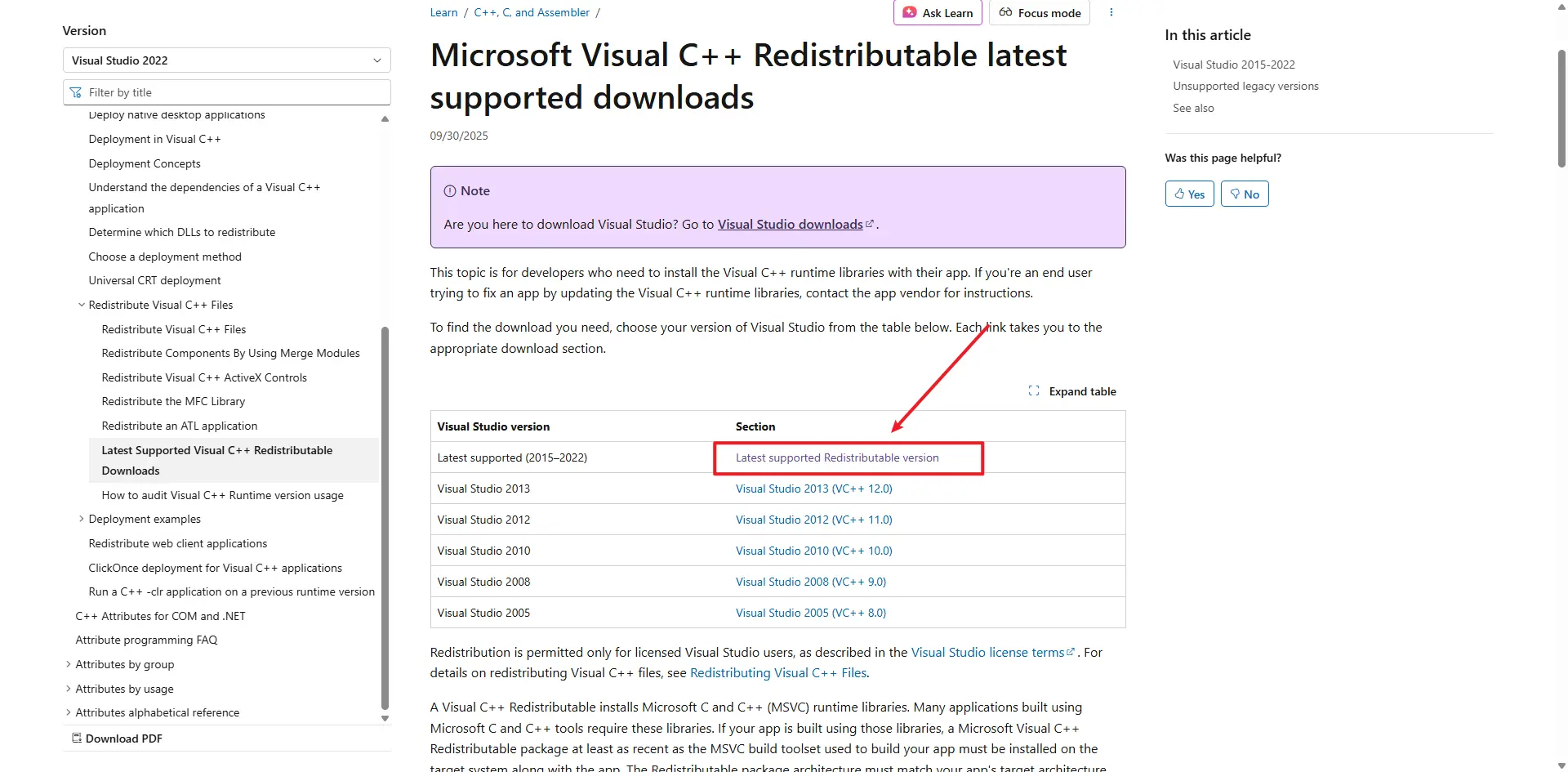
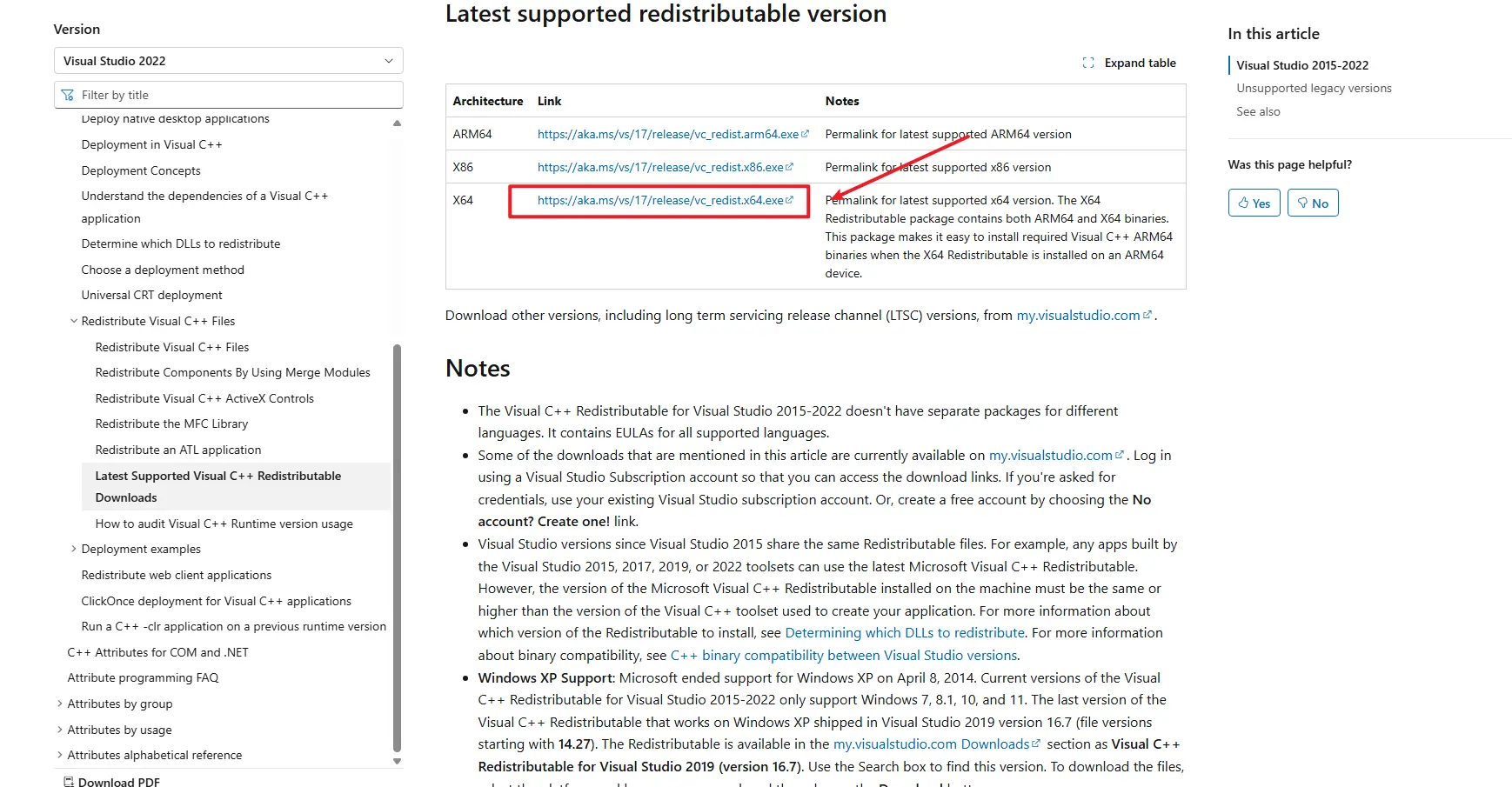
- Zo niet, download en installeer dan de nieuwste versie: Microsoft Visual C++ Redistributable
Stap 3: Controleer Systeemtijd
Onjuiste systeemtijd kan "Agent Start Timeout"-fouten veroorzaken:
- Klik met de rechtermuisknop op de tijdweergave rechtsonder op uw scherm
- Selecteer "Datum/tijd aanpassen"
- Schakel "Tijd automatisch instellen" in als dit nog niet is ingeschakeld
- Als de tijd nog steeds onjuist is, klik dan op "Nu synchroniseren" of stel handmatig de juiste datum en tijd in
- Start TikMatrix opnieuw op na het corrigeren van de tijd
Stap 4: Controleer Applicatielogs
- Klik op
Instellingen>Open App Directoryin TikMatrix. - Ga naar de map
logs. - Controleer het meest recente logbestand op foutmeldingen.
Stap 5: macOS — Agent InvalidStateError
Op sommige macOS-machines kan de agent niet starten en een fout zoals deze tonen:
Agent start error InvalidStateError: The object is in an invalid state.
Mogelijke oorzaak:
- Dit wordt vaak veroorzaakt door een incompatibiliteit tussen de applicatie en de macOS-systeemversie of specifieke hardware/firmware op oudere machines.
Oplossingen / workarounds:
- Update macOS naar de nieuwste beschikbare versie via Systeeminstellingen > Algemeen > Software-update. Start na het updaten uw Mac opnieuw op en probeer TikMatrix opnieuw te starten.
- Als updaten niet mogelijk is of de fout aanhoudt, probeer dan de applicatie uit te voeren op een andere Mac met een nieuwere macOS-versie.
Als u de fout blijft zien na het proberen van bovenstaande, verzamel dan uw applicatielogs en neem contact op met onze support op Telegram met de macOS-versie en logs.
Als het Probleem Aanhoudt
Neem contact op met ons supportteam op Telegram met:
- Uw Windows-versie
- Applicatielogbestanden
- Stappen die u al hebt geprobeerd
Step 6: Linux AppImage - white screen or EGL_BAD_PARAMETER
On Linux, AppImage builds may show a white window on Wayland sessions, especially on NVIDIA systems, and the logs may contain:
Could not create default EGL display: EGL_BAD_PARAMETER
If that happens, start the AppImage once with:
WEBKIT_DISABLE_COMPOSITING_MODE=1 \
WEBKIT_DISABLE_DMABUF_RENDERER=1 \
./TikMatrix.AppImage
Recent builds enable the same WebKit workaround automatically when the app detects an AppImage running on Wayland, so the manual command should only be needed for older packages. If you prefer a native Linux package, the Linux build also includes a .deb artifact.