Publish Post
Platforms: TikTok, Instagram, Threads
Posting for the first time? Start with the one-phone, one-video walkthrough. This page is the advanced reference.
This page covers TikTok, Instagram, and Threads posting parameters. Platform-specific options are labeled in their corresponding entries.
Threads supports text-only posts, video/image posts, multiple images, captions, both material sources (Media Library or Local Folder), and Save Draft Only. It has no sound, product link, placement (Story), cover, AI label, story link, or native scheduling options, since the Threads app does not expose those flows — the corresponding settings are simply ignored.
Steps
- Prepare materials:
- Option 1: Click the
Media Librarybutton to upload videos/images to the media library. - Option 2: Use a local folder as the material source and set the folder path in the script configuration.
- Option 1: Click the
- Select the devices on which you want to run the script.
- Click
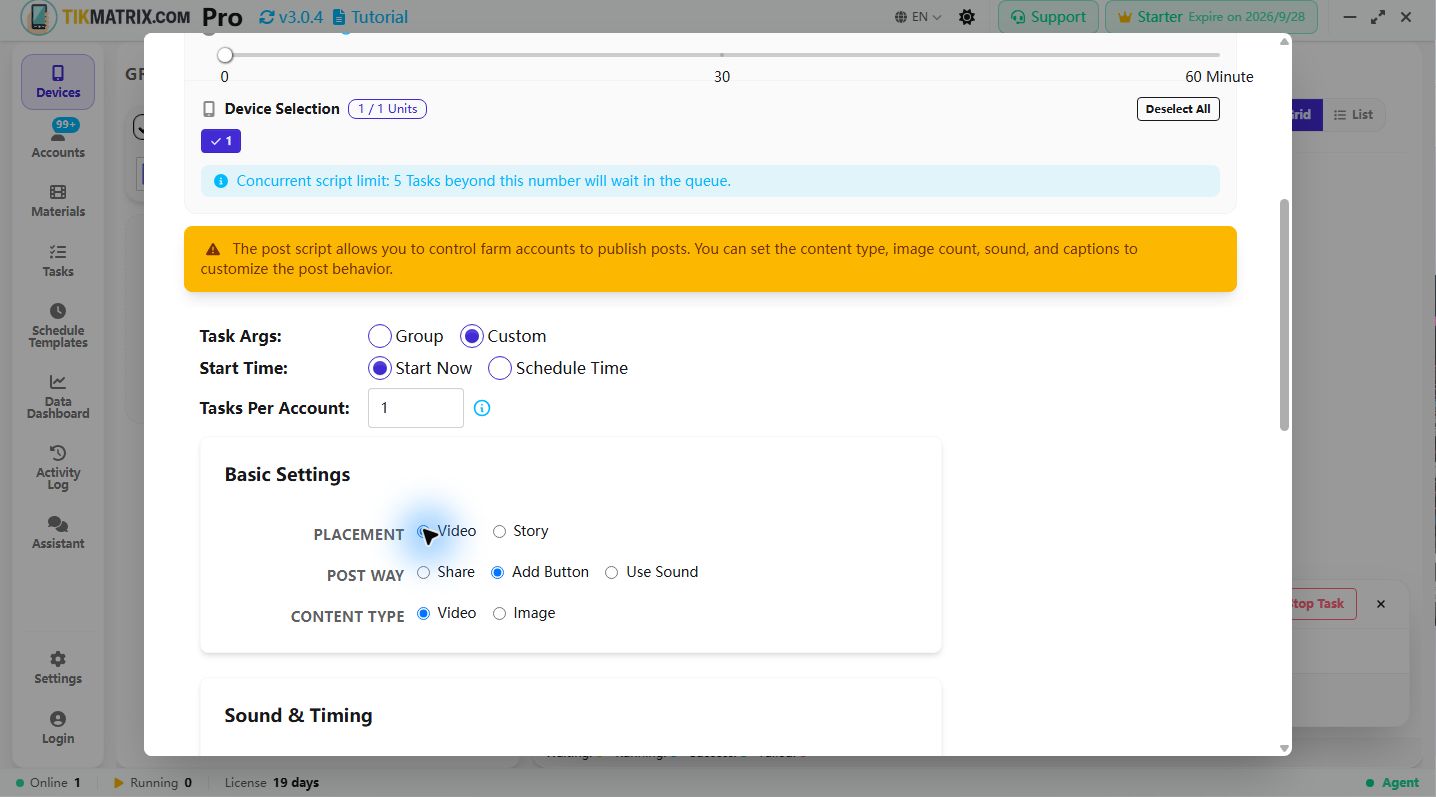
Scripts>Post. - Configure task settings:
- Material Source: Choose Media Library or Local Folder.
- Local Folder Path: If using a local folder, specify the path containing videos/images.
- Posting Method: Choose how to post: System Share, Add Button (
+), or “Use Sound via Search”. - Placement (TikTok only): Choose where to publish:
- Video (default): Publish as a regular TikTok video.
- Story: Publish to TikTok Story. After sound setup the script clicks "Your Story" directly — no caption, product link, or AI label steps.
- Sound Name: When using "Use Sound via Search", you can:
- Enter a sound name to search (e.g., “original sound”, “trending music”)
- Directly enter a TikTok sound link (e.g.,
https://www.tiktok.com/t/ZP8hvBwCb/)
- Content Type: Select video or image.
- Add Sound Toggle: Enable/disable adding sound.
- Music Loading Wait Time: Set how long to wait for the added music to load (5–30 seconds). Set a range and the script picks a random value inside it for each post.
- Upload Waiting Time: Set the delay after uploading (30–300 seconds) so the platform's servers fully process the content before continuing. Set a range and the script picks a random value inside it for each post; use higher values on slower networks.
- Caption Format: Choose between two caption formats:
- Multiline: Each line is a separate caption. System rotates through them sequentially.
- Spintax: Use
{option1|option2}syntax for random text generation.
- Captions: Enter captions based on the selected format. Supports mentions (e.g., @TikMatrixPhoneFarm) and hashtags (e.g., #tag1 #tag2 #tag3). See detailed format explanation below.
- Material Tags: Filter materials by tag. If not set, all materials will be used.
- Save Draft Only (TikTok Video only): Enable this option to skip clicking the Post button. The script will instead click the Drafts button to save the content as a draft without publishing. This option is not available when Placement is set to Story.
- Schedule Reels (Instagram Reel only): Enable to use Instagram's built-in Reels scheduler instead of publishing immediately. When enabled, a Schedule Time date-and-time picker becomes available.
- Schedule Time (Instagram Reel only, visible when Schedule Reels is enabled): Set the exact date and time for the scheduled Reel to be published. Instagram requires the scheduled time to be at least 20 minutes in the future. The script will navigate to More Options, enable the Schedule this reel toggle, select the specified date and time, click Done, and then click the Schedule button to complete the task.
- Story Link (Instagram Story only): Enter a URL to automatically attach a link sticker to the story. When set, the script will open the sticker picker, search for the Link Sticker, enter the provided URL, and confirm. Leave empty to skip adding a link.
- Click Start Script to begin execution.
Caption Formats
The system supports two caption formats to give you flexible control over your post captions.
Multiline Mode (Default)
How it works:
- Each line represents one independent caption
- System uses captions in sequential order and loops back to the beginning
- Use
###within a line to add line breaks inside a caption
Example:
First caption###with line break
Second caption###also with line break
Third caption without line break
Platform-specific features:
- TikTok: Use
##to separate title and description (e.g.,Title##Long Description) - Instagram:
##is not supported and will show a warning
Spintax Mode
How it works:
- Only one caption template
- Use
{option1|option2|option3}syntax for random variations - Use native line breaks (press Enter key) for multi-line captions
- Do NOT use
###- it won't be interpreted
Example:
{Today|Tomorrow|Yesterday} the weather is {good|great|awesome}
Welcome to follow my account##Click the link for more info
Platform-specific features:
- TikTok:
##works to separate title and description - Instagram:
##is not supported
Note: In Spintax mode, if you see ### in your caption, the system will suggest using native line breaks instead.
Material Management
Music Usage Modes
When the Posting Method is set to Use Sound via Search, the script supports two modes for adding music:
1. Sound Search Mode
Enter a sound name to search inside TikTok:
- Examples:
original sound,trending music,viral beat - The script will search TikTok’s sound library and select the first matching result
- Best for trending/popular sounds
2. Sound Link Mode
Enter a direct TikTok sound URL to use a specific sound:
- Supported link formats:
- Short link:
https://www.tiktok.com/t/ZP8hvBwCb/ - Music page:
https://www.tiktok.com/music/original-sound-7473897776619834646 - VM link:
https://vm.tiktok.com/ZMhvBwCbD/
- Short link:
- The script automatically detects links starting with
https://and opens them directly - Best for using specific sounds from specific videos
Media Library
- Material Tags: Add tags to materials for filtering during publishing. If not specified, all materials are used.
- Material Caption: You can assign a custom caption to each material. If set, it overrides the publish settings.
- Material Username: You can assign a username to each material. Materials with matching usernames are prioritized.
- Material Sorting: Assign sorting numbers to materials (useful for multi-image posts). Lower numbers appear earlier.
Local Folder Source
-
Folder Structure:
/material-root/├── caption.txt (optional - root fallback)├── sound_names.txt (optional - root fallback)├── sound_urls.txt (optional - root fallback)├── @username1/│ ├── video1.mp4│ ├── video2.mp4│ ├── image1.jpg│ ├── image2.jpg│ ├── caption.txt (optional)│ ├── sound_names.txt (optional)│ └── sound_urls.txt (optional)├── @username2/│ ├── content1.mp4│ ├── content2.jpg│ ├── caption.txt (optional)│ ├── sound_names.txt (optional)│ └── sound_urls.txt (optional)└── ... -
Folder Path: Specify the root path containing username subfolders.
-
Username Subfolders: Each username must have its own subfolder (e.g.,
@username1,@username2). -
Root Folder Fallback: If a username folder does not exist or username is empty, materials and settings will be read from the root folder.
-
Supported Formats:
- Video: MP4
- Image: JPG, PNG
-
Caption File: An optional
caption.txtper username folder for custom captions. Falls back to rootcaption.txtif not found.- Format Description: Caption.txt only supports Spintax template format (same usage as UI's Spintax mode):
- Configure one Spintax template using
{option1|option2}syntax for random variations - Use native line breaks (Enter key) for multi-line content
- Supports
##title/description split (TikTok only, not Instagram)
- Configure one Spintax template using
- Note: Caption.txt does NOT support Multiline sequential selection mode
- Format Description: Caption.txt only supports Spintax template format (same usage as UI's Spintax mode):
-
Music Files:
- sound_names.txt: Sound names for search, one per line. Reads in order and loops when reaching the end.
- sound_urls.txt: TikTok sound URLs, one per line. Reads in order and loops when reaching the end.
- If username folder does not exist, reads from root music files.
-
File Selection:
- Videos: randomly choose one each time
- Images: select multiple depending on count
-
Usage Tracking: Files are automatically marked as used to prevent repetition.
Caption.txt File Format
When using Local Folder Source, the caption.txt file is used to configure a Spintax template. This file can override the caption settings from the UI.
Important Note: Caption.txt only supports Spintax template format, NOT Multiline sequential selection mode.
Spintax Template Format
Configure one Spintax template using {option1|option2} syntax for random text variations. Use native line breaks (press Enter) for multi-line content:
{Good morning|Hello|Hi}! Check out this {amazing|incredible|awesome} video!
{Follow for more|Like and share|Tag your friends}
Possible outputs:
- "Good morning! Check out this amazing video!"
- "Hello! Check out this incredible video!"
- "Hi! Check out this awesome video!"
Complex Spintax with variations:
{🔥|✨|🎉} {Don't miss|Check out|Watch} this {amazing|incredible|awesome} {video|content|post}!
{Follow for more|Like and share|Tag your friends} {#trending|#viral|#fyp} #tiktok
Spintax with TikTok title/description split:
{Exciting|Amazing|Incredible} {News|Update|Discovery}##Here's what you need to know about this {fantastic|wonderful|remarkable} {development|update|story}!
Filename Variable
When using Local Folder Source, caption.txt supports the {filename} variable that dynamically inserts the name of the media file being posted. The extension is automatically stripped:
{filename}— The filename without extension (e.g., forsunset_beach.mp4, it becomessunset beach). Underscores in the filename are automatically replaced with spaces, since filenames cannot contain spaces — use underscores to represent them.
Note: Only {filename} is supported. There is no {filename_no_ext} or other filename variable.
This variable is replaced before spintax processing, so you can combine it with spintax syntax:
{Just uploaded|Check out} {filename}! {#nature|#beautiful}
If the media file is sunset_beach.mp4, possible outputs:
- "Just uploaded sunset beach! #nature"
- "Check out sunset beach! #beautiful"
Complete Caption.txt Example
A complete Spintax template example:
{Morning motivation|Daily inspiration|Start your day}! 💪
{Loving|Enjoying|Obsessed with} this {beautiful|amazing|stunning} view! 🌅
{Can't believe|So excited about|Thrilled with} this {moment|experience|adventure}! ✨
Example with TikTok title/description split:
{Amazing|Incredible|Awesome} {video|content|post}##Here's {everything|all|what} you need to know about this {fantastic|wonderful|remarkable} {moment|experience|story}!
Sound_names.txt Example:
Original sound
Trending music
Viral beat
Popular song
Dance music
Sound_urls.txt Example:
https://www.tiktok.com/t/ZP8hvBwCb/
https://www.tiktok.com/music/original-sound-7473897776619834646
https://vm.tiktok.com/ZMhvBwCbD/
https://www.tiktok.com/t/ZP8hvBwCb/
FAQ
-
Why does the task fail?
- Automation scripts simulate user actions based on TikTok/Instagram/Threads behaviors. Failures may occur due to network issues, app glitches, unexpected pop-ups, device performance issues, compatibility issues, etc.
- If failures persist after retries, submit a support ticket.
-
How can I run tasks unattended?
- Create a device group and set a schedule in the group's Post settings. The software will automatically create and run publishing tasks at the specified time every day.
-
How to control the order of slideshow posts?
-
Set sorting numbers for each image material in the media library. Lower numbers appear earlier.
-
You may also batch-import materials using filenames that follow this pattern:
sort_1_description.pngsort_2_description.pngsort_3_description.png
-
-
How to use different materials, captions, and music for each account?
- With local folders: create subfolders for each username and add
caption.txt,sound_names.txt, orsound_urls.txtfiles to define custom captions and music. The script prioritizes matching username folders. - With the media library: set username and caption fields for each material, and the script will prioritize matching materials.
- With local folders: create subfolders for each username and add
-
What material formats are supported?
- Video: MP4
- Image: JPG, PNG
-
Can images and video materials be reused?
No. To protect your accounts, our system automatically marks materials as used after they have been posted so they won't be selected again. This helps prevent duplicate posts and reduces the risk of account flags or bans.