Task Settings
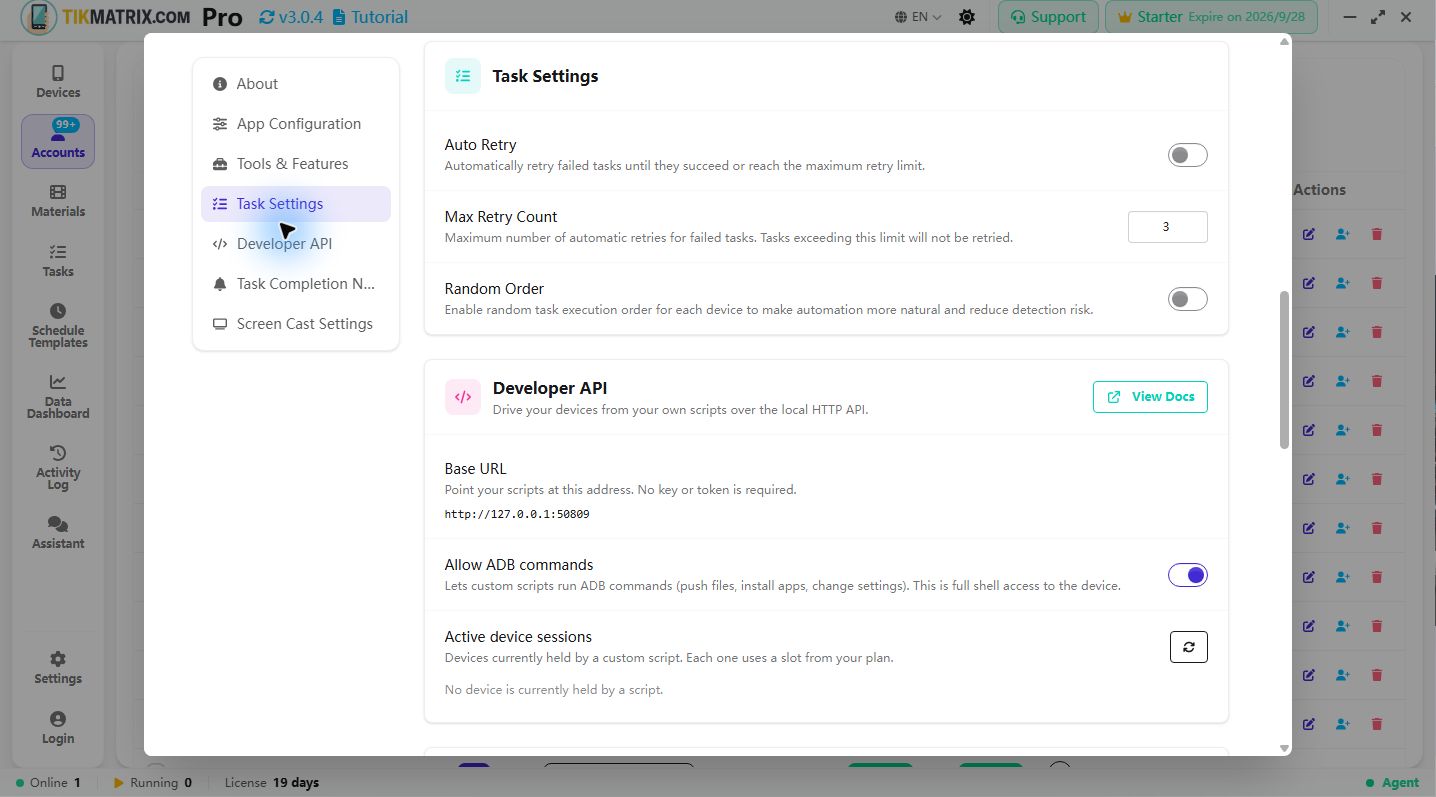
Open Settings → Task Settings to configure retries and execution order.
Task scheduling rules
- Tasks scheduled to start will be executed within 10 seconds of their start time.
- Each device runs only one task at a time; additional tasks are automatically queued per device.
- Maximum concurrent tasks are limited by the license tier; free users will not run automated tasks and will remain in a "Waiting" state.
- Before each retry, the system applies a randomized delay between 5 and 60 seconds.
This dialog lets you control how tasks are retried and the execution order used by devices. Below are the options and how to use them.
Auto Retry
What it does:
- Automatically retries a failed task until it succeeds or reaches the retry limit.
How to use:
- Enable when failures are often transient (network hiccups, temporary app issues).
- Test on a small set of tasks before enabling globally.
Max Retry Count
What it does:
- Sets the maximum number of automatic retry attempts for a failed task.
How to use:
- Choose a conservative value (2–3) to avoid long retry loops, or raise it when transient failures are frequent.
- UI enforces sensible bounds (e.g., 1–10).
Random Order
What it does:
- Executes tasks in a randomized sequence per device to reduce synchronized behaviour.
How to use:
- Enable for large device pools or when you want less predictable task patterns.
Close app after task
What it does:
- Controls whether the target app (TikTok / Instagram) is closed (force-stopped) after a task finishes.
- Enabled by default — this matches the long-standing behavior and frees device resources between tasks.
How to use:
- This option lives in the common options panel of the Run Script dialog, next to Multi-Account and Rotate Proxy.
- Leave it on if you want each task to start from a clean app state and keep memory usage low (recommended for most users).
- Turn it off when you want the app to stay open after the task — for example, to chain several tasks back-to-back or to inspect the result on the device manually.
- Your choice is remembered and applied to subsequent runs.
The same behavior is available through the Public API via the
close_appparameter — see the Task Management API.
Applying changes
- Changes apply immediately; the dialog shows success or error notifications.
Where to find it
- Click the gear (⚙) icon in the top-right title bar to open Settings, then scroll to the Task Settings section.
Task Status Bar
The bottom of the device list panel shows a live status bar with four colored indicators:
| Indicator | Color | Meaning |
|---|---|---|
| Waiting | Yellow | Tasks queued, not yet started |
| Running | Blue | Tasks currently executing |
| Success | Green | Tasks completed successfully |
| Failed | Red | Tasks that ended with errors |
Task List & Activity Log
- Click Tasks in the left navigation to view all task records.
- Click the Activity Log button to view a detailed execution log.
Stop Task
- Select the relevant devices in Devices to reveal the bottom action panel, then use Stop Task to stop their running tasks.
Quick tips
- Start with
Max Retry Count= 2–3 and adjust based on observed failures. - Use
Random Orderto make large-scale runs appear more natural. - Verify
Auto Retryon a small sample before broad use.
If you need a localized version of this guide, switch the site language using the language selector in the top-right corner.